 LLM-Ready API
Claude Remote MCP Integration
These instructions walk you through the steps required to add the Trademo LLM-Ready API remote MCP server to Claude - connecting Trademo Trade Intelligence directly into your Claude workspace.
Important notes
A couple of quick settings to check before you begin - these ensure the connector behaves reliably in every chat.
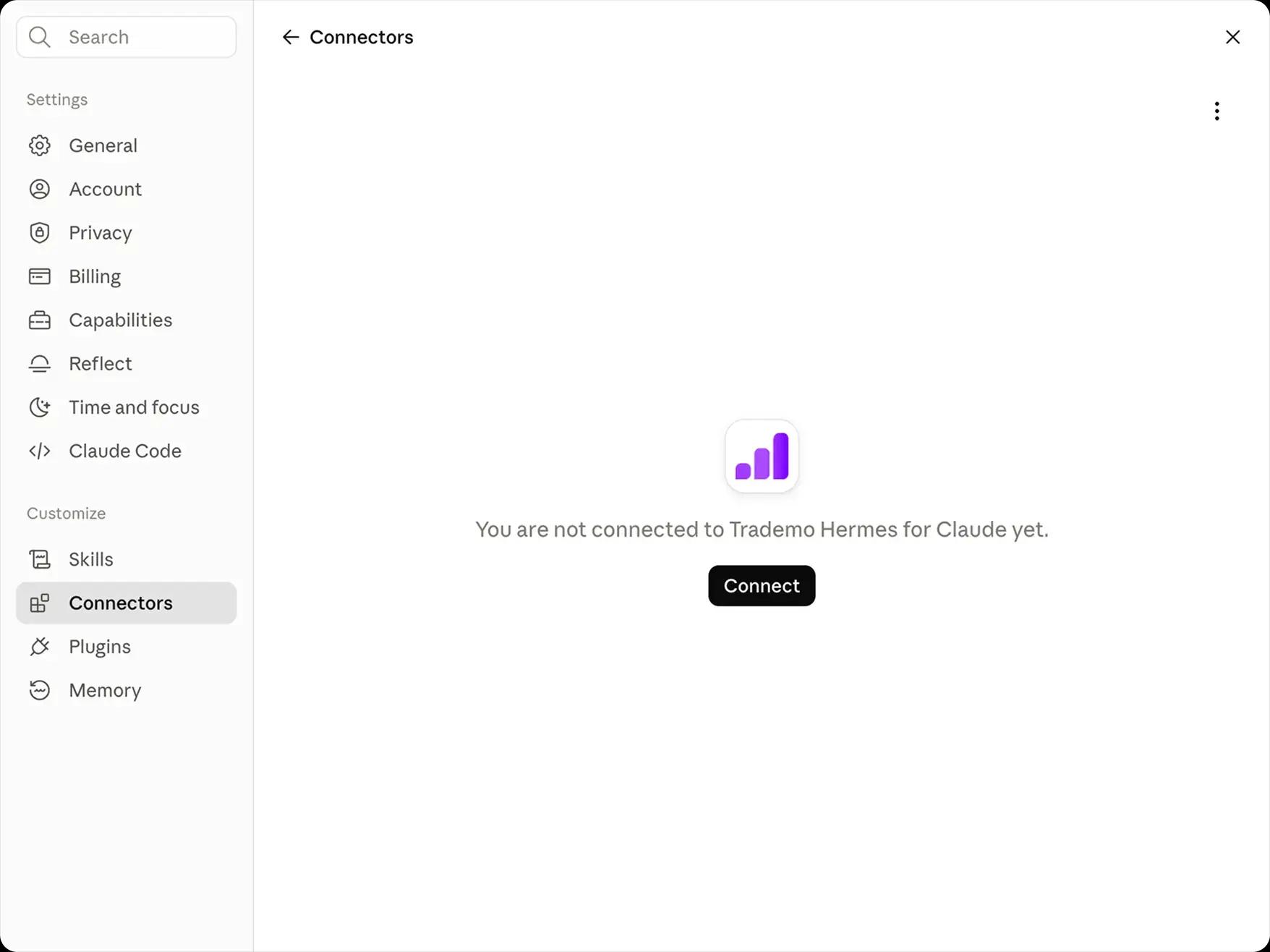
Returning users — verify the connection
Make sure to click the Connect button and confirm the connection is active before starting a new chat.
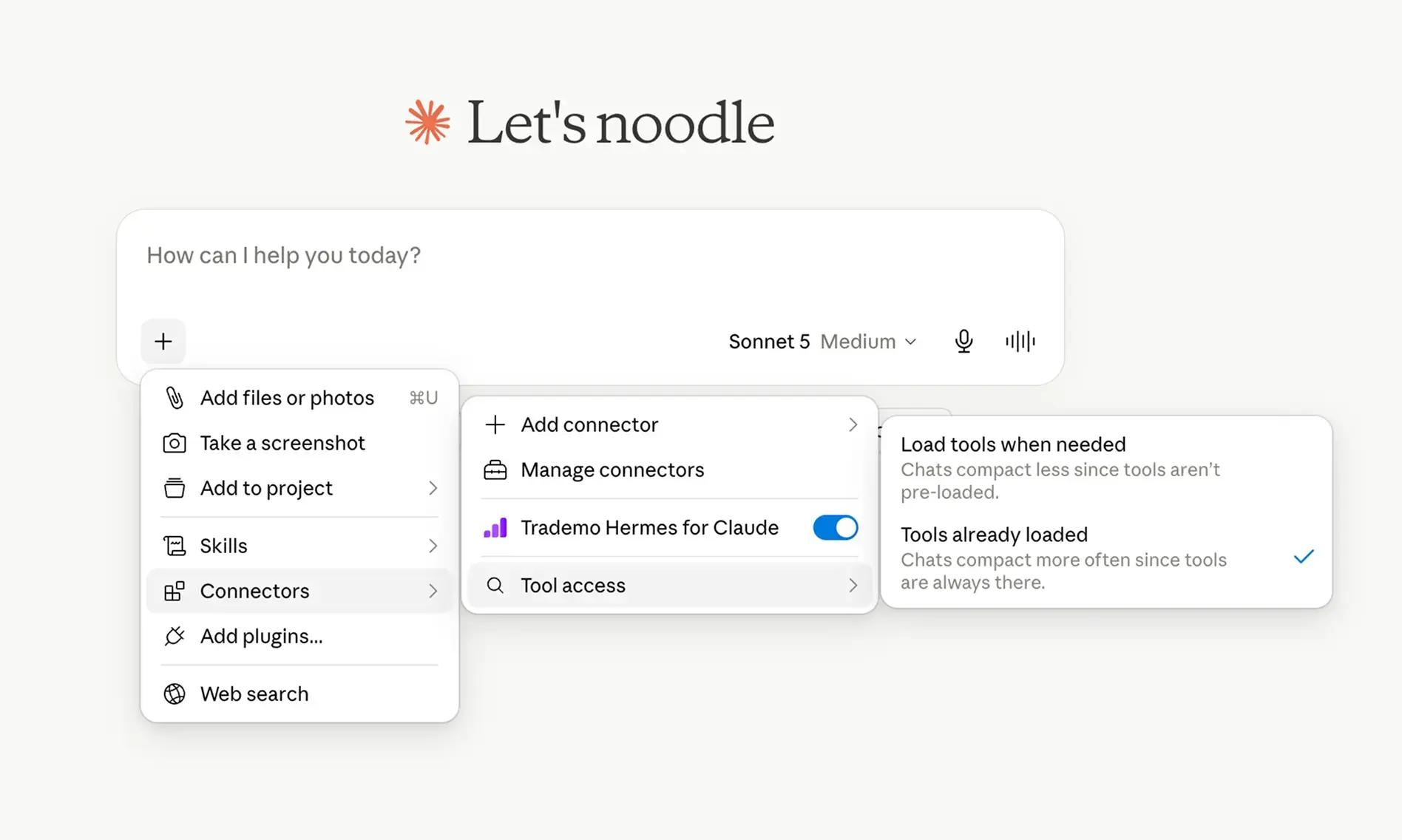
Best performance — preload tools
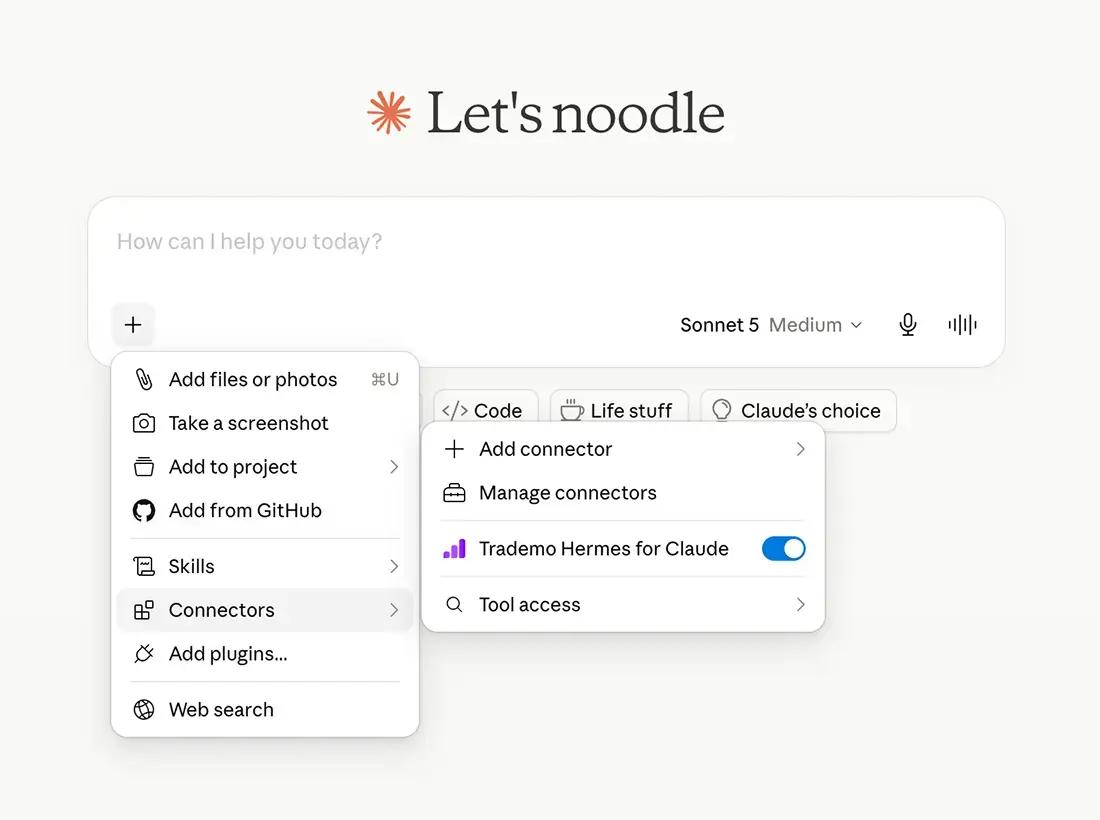
Go to Connectors → Tool access and select Tools already loaded.
Adding the remote MCP server to Claude
The steps below add the Trademo LLM-Ready API remote MCP server to Claude or Claude Desktop.
Team owners only
You must be a Claude team owner for your organization to add a new connector. These instructions apply to team owners adding a connector to their team's account for the first time.
- 1
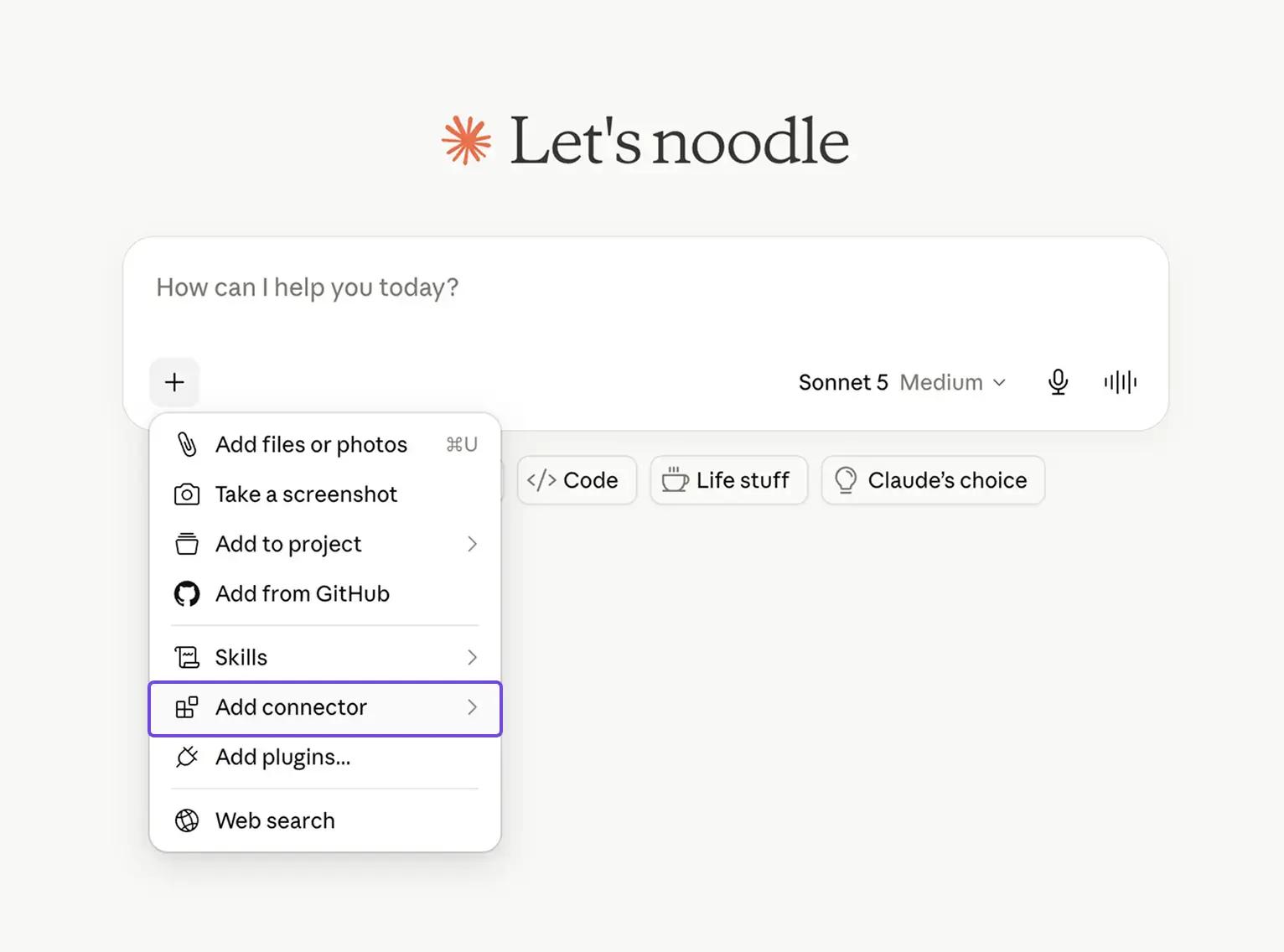
Open the connectors menu
On the Claude Desktop homepage, click the “Add files, connectors, and more” icon, then choose Add connector.
- 2
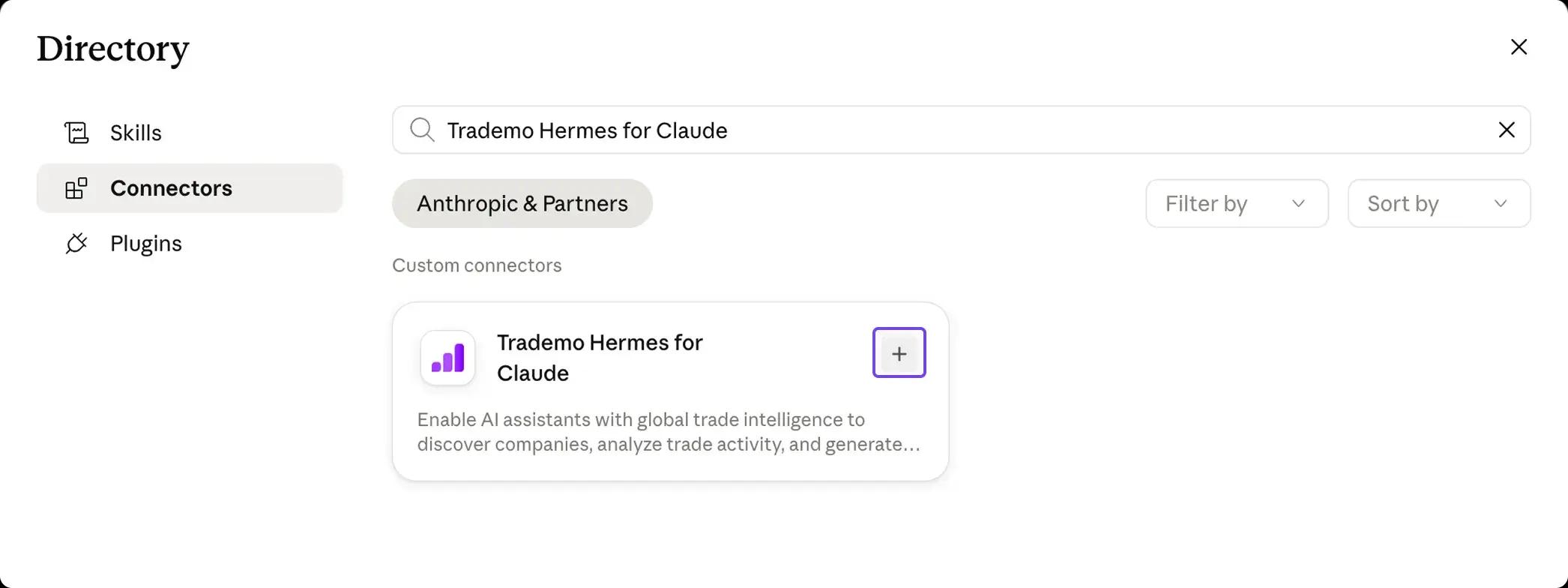
Find the Trademo connector
Search for Trademo Hermes for Claude in the connectors directory and click Add. This starts the Trademo authentication flow.
- 3
Sign in to Trademo
Enter your Trademo auth key to connect Trademo Trade Intelligence. Your auth key is sent via email when you sign up for a trial or account. New to Trademo? Use Sign up with your email to create an account. Completing sign-in redirects you back to Claude Desktop.

- 4
Start using the connector
The Trademo connector now appears under Connectors and can be used in your chats with Claude. Use natural language to query Trademo trade intelligence datasets.
- 5
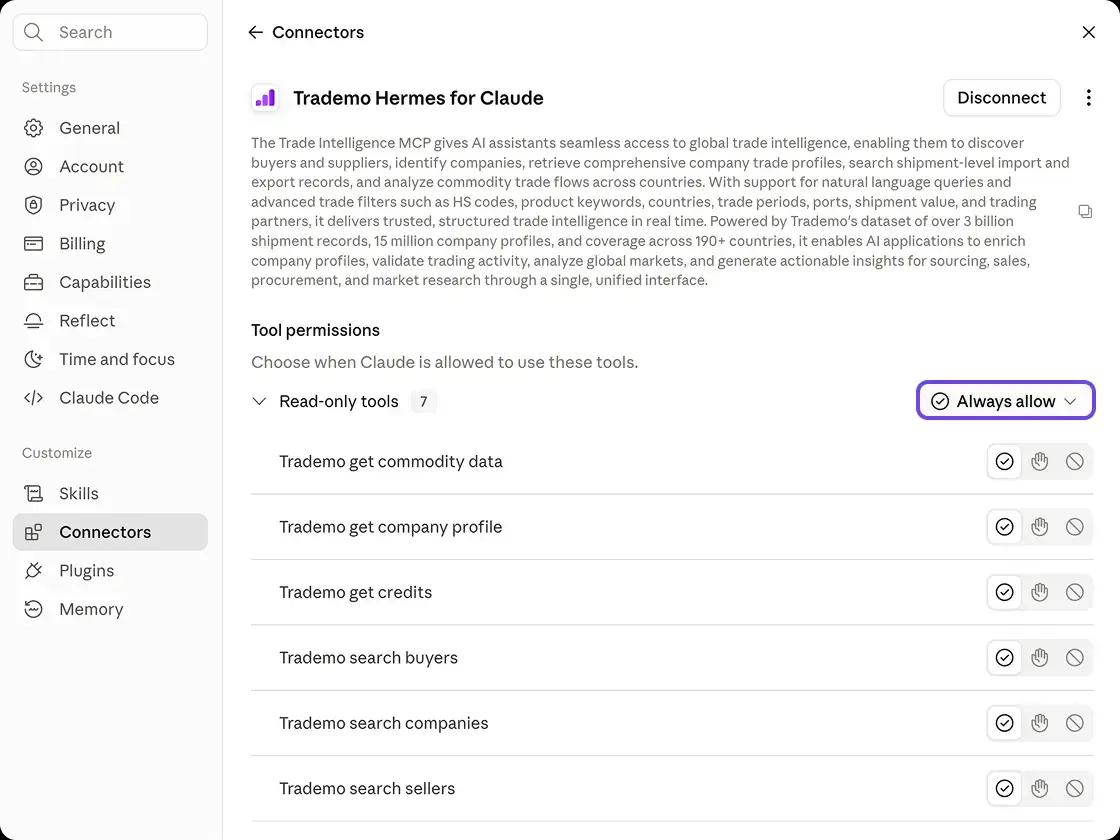
Customize tool access
We recommend leaving all tools on unless you want to isolate select tools. Set the permission to Always allow for a seamless experience.
Need help connecting?
If you’re having difficulty logging in or don’t yet have a subscription, our team is here to help.
Trademo LLM-Ready API · Model Context Protocol Integration for Claude